Understanding and managing findings
Findings bring together the issues, risks and informational results identified in your Glasstrail scans. The Findings page helps you review what was found, understand why it matters, and track the work needed to manage each finding.
You can use findings to prioritise work, assign ownership, add context, and link remediation activity back to the item.
Quick links
What you can see on the Findings page
Go to Findings from the left-hand menu to see all issues, risks and informational findings from your scans.

From this page you can:
- search findings by finding name, asset, value or ticket
- filter by type, severity, status, assignee, tags, target date, root entity and finding category
- show only findings that are new in the last scan
- sort the list by columns such as finding, severity and value
- export the current view
- share a link to the current view
- open the visualisation view
You can also select findings and apply actions (e.g. assign, tag, date, status) in bulk:

Open a finding
- Go to Findings.
- Use the search bar or filters to narrow the list.
- Click on the finding you want to review.
The finding opens in a detail panel where you can review the risk, supporting data and any follow-up activity.
Understand the finding details
Each finding includes summary information at the top of the panel, such as:
- Type – for example risk or issue
- Severity – for example high
- Category – for example email security
- Found – when Glasstrail first detected the finding
- Last seen – when Glasstrail most recently observed it
- Root entity and related values
You can also use Copy to copy a value, or Filter to filter the findings list by that value.
Update and track a finding
You can use the controls in the finding panel to manage follow-up work.
- Set the status
Choose the status that best reflects the current state of the finding. Available statuses shown in the interface include Raised, Tolerated, Remediated and Not relevant. - Assign an owner
Use the assignee field to show who is responsible for the next action. - Set a target date
Select Set target date to record when the finding should be reviewed or resolved. - Add tags
Select + Add tag to label the finding for reporting, grouping or workflow purposes.
Use the finding tabs
The tabs in the finding panel help you understand the finding and track related work.
What's the issue? / What's the risk? / What is this?
This tab explains the impact of the finding and why it matters.
How can you fix it?
For issues and risks, this tab provides remediation guidance. Some findings may also include a link to more information.
Data
This tab shows the underlying values and attributes for the finding, such as the finding value, severity, root entity and parent entity.
Trail
This tab shows the path or relationship trail that led to the finding.
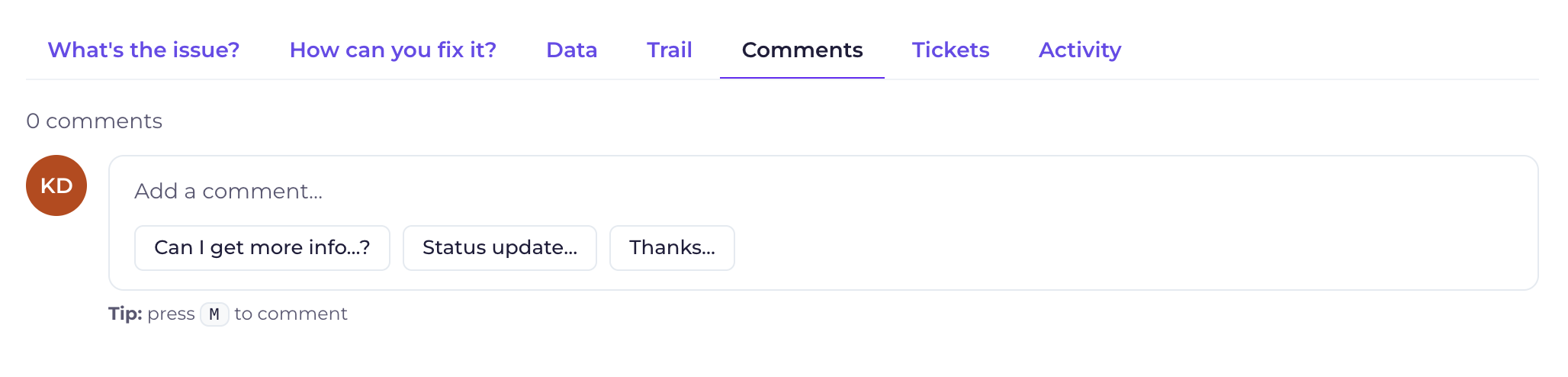
Comments
Use this tab to add updates, ask questions and keep discussion with the finding. You can also use the suggested comment prompts, and type M from any tab to comment.
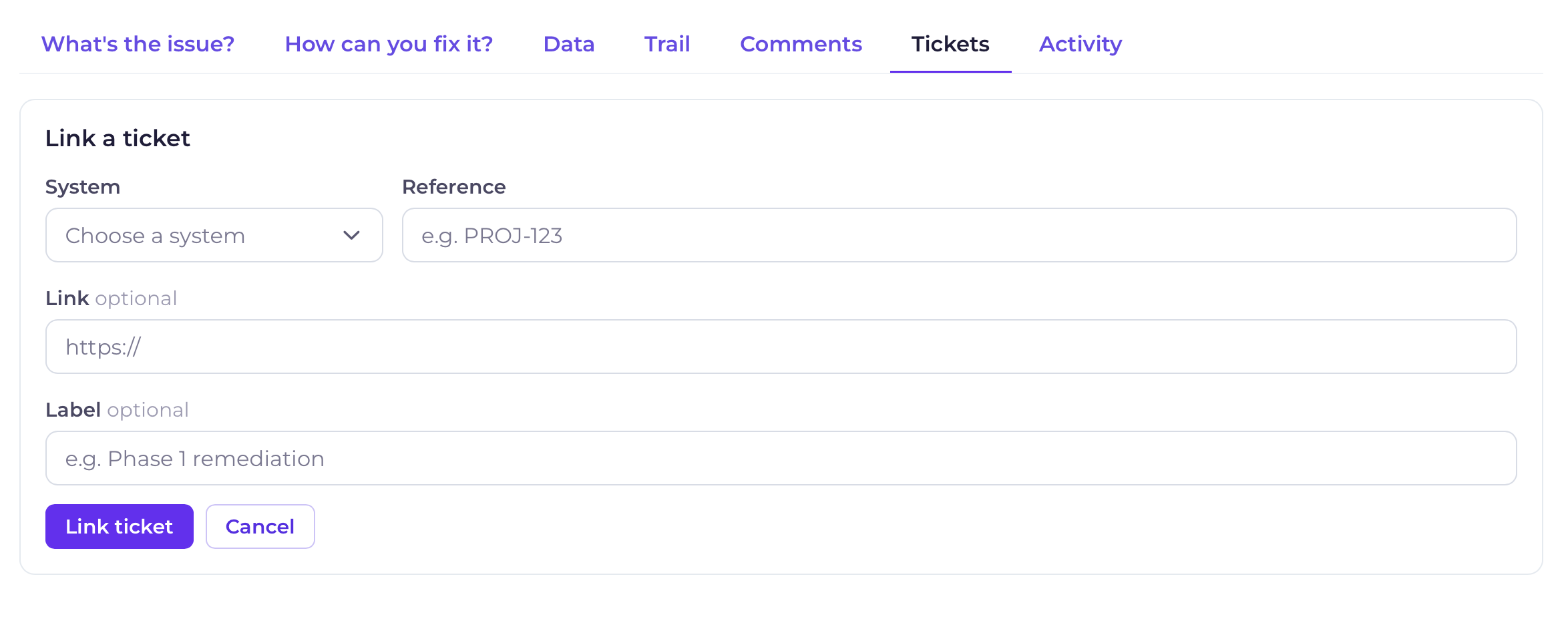
Tickets
Use this tab to link the finding to a Jira, Azure DevOps or other ticket so people can track remediation work from the finding.
Activity
This tab shows a history of system activity for the finding, such as when it was found and when it was last seen.
After you review a finding
After reviewing a finding, you can return to the findings list and continue to triage other items. Using statuses, assignees, tags and target dates consistently makes it easier to report on progress and focus on the highest-priority work first.
You can also use the previous and next arrows to work through Findings cards.

Related content