Understand your inventory
The inventory dashboard shows the informational findings and entities Glasstrail has discovered from your scans. It helps you understand what has been found across your environment, how those items change over time, and which findings relate to each entity.
Quick links
What inventory shows
The inventory dashboard brings together three views:
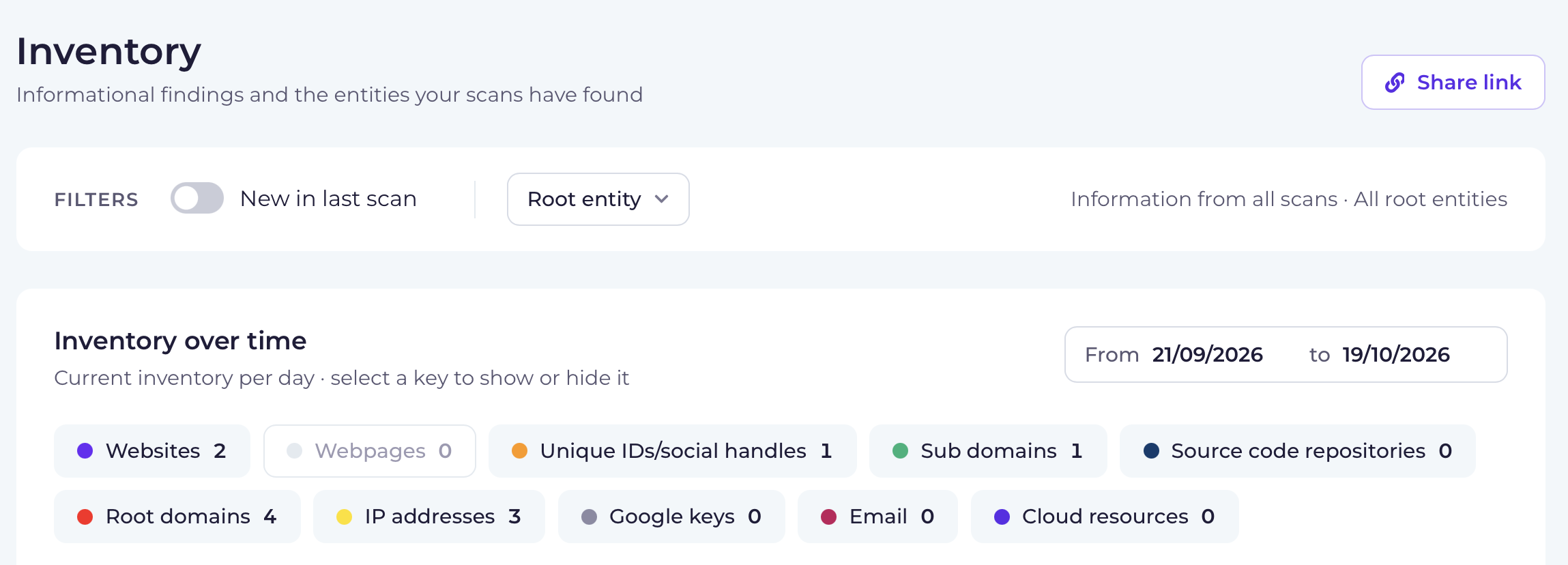
- Inventory over time - click the inventory type chip to display or hide it
- Inventory findings – informational results found by scans - card view
- Entities – unique inventory items found across scans - card view
Each entity can generate more than one inventory finding.
Use the filters
Filter by new items
Turn on New in last scan to focus on inventory items found in the most recent scan.
Filter by root entity
Use Root entity to narrow the view to a specific top-level entity group.
Change the date range
In the Inventory over time section, use the date range selector to change the period shown on the chart.
Review inventory findings
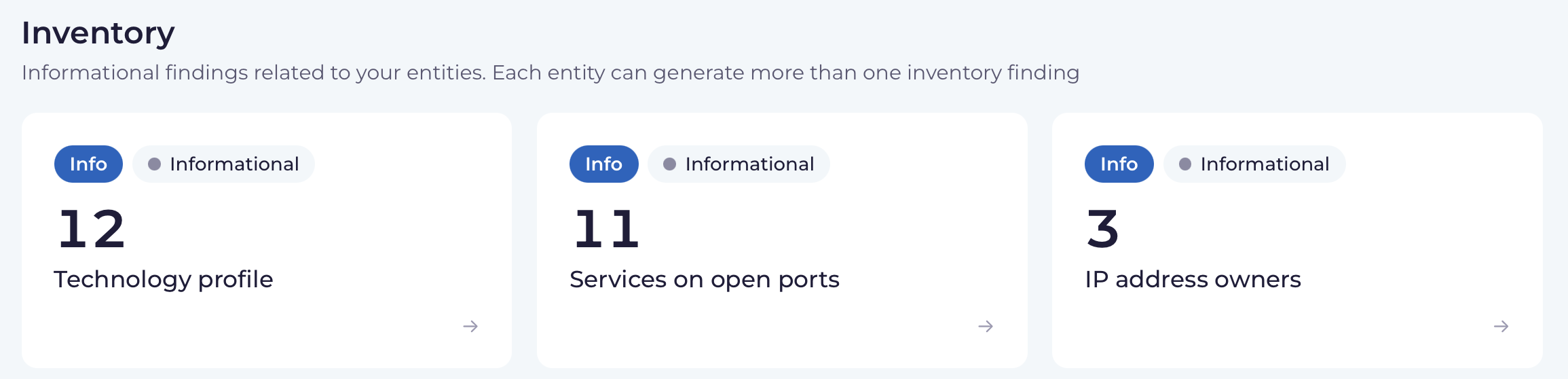
The top part of Inventory shows informational finding cards. These cards summarise the number of findings by type.
Each card shows:
- the finding type
- the number of findings
- an informational severity label
To explore a finding type, select the arrow on the card.
Review entities
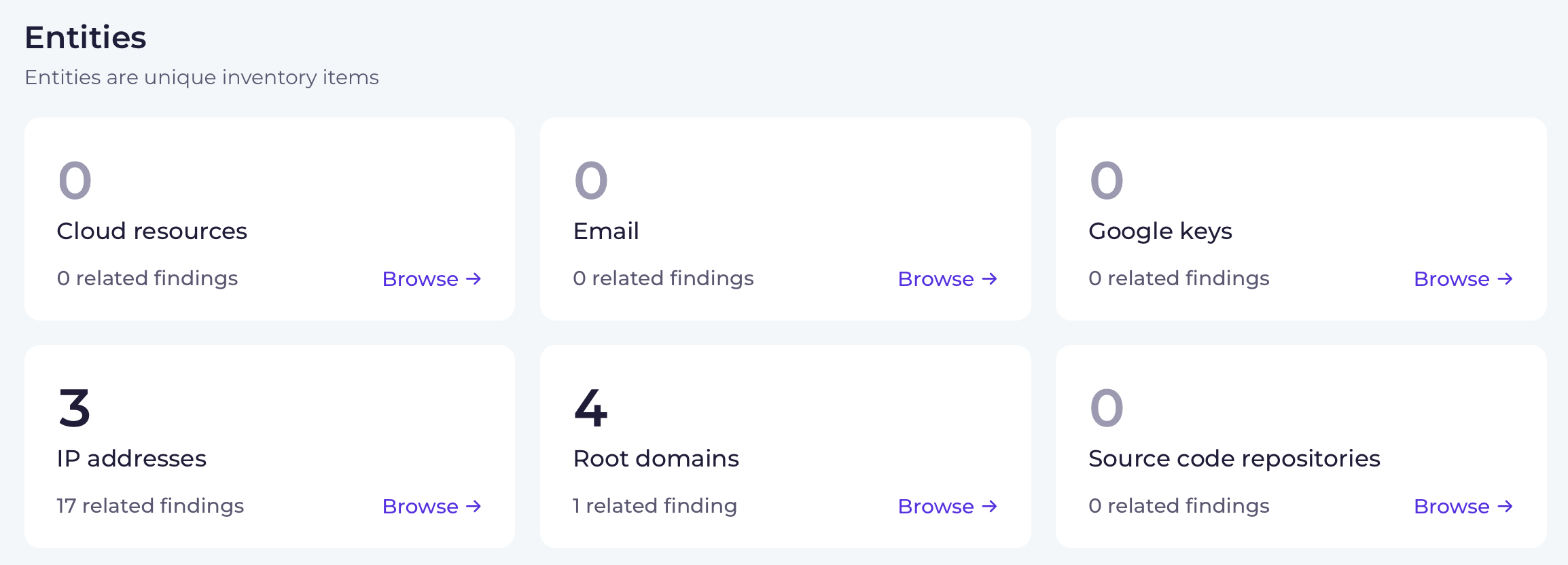
The Entities section shows unique inventory items.
Each entity card shows:
- the number of entities of that type
- the entity type
- the number of related findings
- a Browse action which takes to a list of entities of that type
Findings vs entities
- Entities are the things Glasstrail has found
- Inventory findings are the informational details Glasstrail has recorded about those things