Connect an AI tool to Glasstrail
Connect an AI tool, such as Theta Assist or Claude, to Glasstrail to search and summarise findings, review scan information, and update findings through a conversation.
The connection uses Model Context Protocol (MCP). Your AI tool acts on your behalf and can only access the organisations and actions your Glasstrail permissions allow.
Quick links
Before you start
You need:
- A Glasstrail user account (try free for 14 days).
- An AI tool that supports remote MCP connections.
- AI agent access enabled by a Glasstrail account admin.
- Access enabled for the organisations you want to work with.
AI agent access is off by default. Connecting an AI tool does not give you additional Glasstrail permissions.
Allow AI access in Glasstrail
For account admins
- Open Account and select your account.
- Find AI agent access on the account details page.
- Select Allow AI agents (MCP clients, such as Claude) to access this account’s data.
- Select the organisations that AI tools can access.
Changes apply immediately. Members can then connect their own AI tools, using their existing Glasstrail permissions.
Note: Allowing an organisation does not give every member access to it. Each member’s existing permissions still apply.

Connect your AI tool
The connection steps depend on your AI tool.
- Open your AI tool’s connector or MCP settings.
- Add the Glasstrail MCP connection using the server address https://app.glasstrail.com/mcp
- Sign in with your usual Glasstrail account when prompted.
- Review the access requested by the tool.
- If you only want the tool to read data, deselect write access on the consent page.
- Approve the connection and return to your AI tool.
Your connection can have:
- Read access: Search and view Glasstrail data.
- Write access: Update findings, within your Glasstrail permissions.
Write access does not override your role or the rules that apply in Glasstrail.
Example: Claude Code
Connect Claude Code to Glasstrail to search and work with your findings through a conversation. Claude Code uses your Glasstrail permissions and the access you approve when connecting.
Before you start
Ask your Glasstrail account admin to enable AI agent access for your account and the organisations you need.
1. Open MCP settings
In Claude Code, enter /mcp, then select MCP servers.
2. Add a server
In the MCP servers window, select Add server. You may need to scroll to find it.
3. Enter the Glasstrail connection details
Complete the Add MCP server form:
- Name: Enter
glasstrail. - Transport: Select HTTP (remote).
- URL: Enter
https://app.glasstrail.com/mcp. - Headers: Leave this field blank.
- Scope: Select Local to make the connection private to you in this project. Alternatively, select User to make it available in all your projects.
Select Add server.
- Enter the MCP address in the URL field.
4. Start a new session
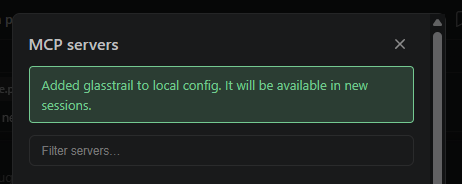
Claude Code confirms that Glasstrail has been added and will be available in new sessions.
Start a new Claude Code session, then enter /mcp and open MCP servers again.
5. Select Glasstrail
Select glasstrail in the server list. The Needs Auth status means you still need to sign in and approve the connection.
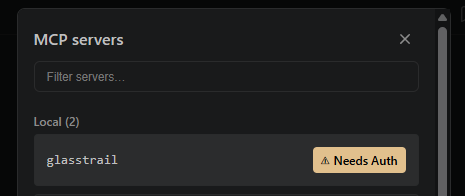
Screenshot: Glasstrail listed with the Needs Auth status.
Alt text: Glasstrail MCP server waiting for authentication.
6. Authenticate the connection
Select Authenticate to open the sign-in process in your browser.
7. Sign in to Glasstrail
Sign in using your usual Glasstrail sign-in method:
- Enter your email address and password, then select Sign in; or
- Select Microsoft work account if that is how you normally sign in.
If an access approval page appears, review the requested permissions. Deselect write access if you only want Claude Code to read your data, then approve the connection.
8. Return to Claude Code
When your browser shows Authentication successful, close the tab and return to Claude Code.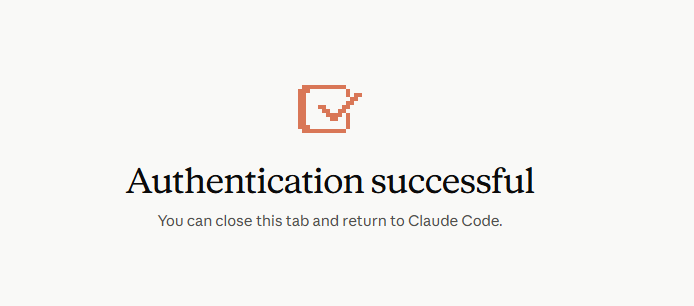
Try a request such as:
“List the Glasstrail organisations I can access.”
Then ask about a specific organisation, for example:
“Summarise the current findings for [organisation].”
Example: Glasstrail connection in Theta Assist
For an assistant already configured with the Glasstrail MCP:
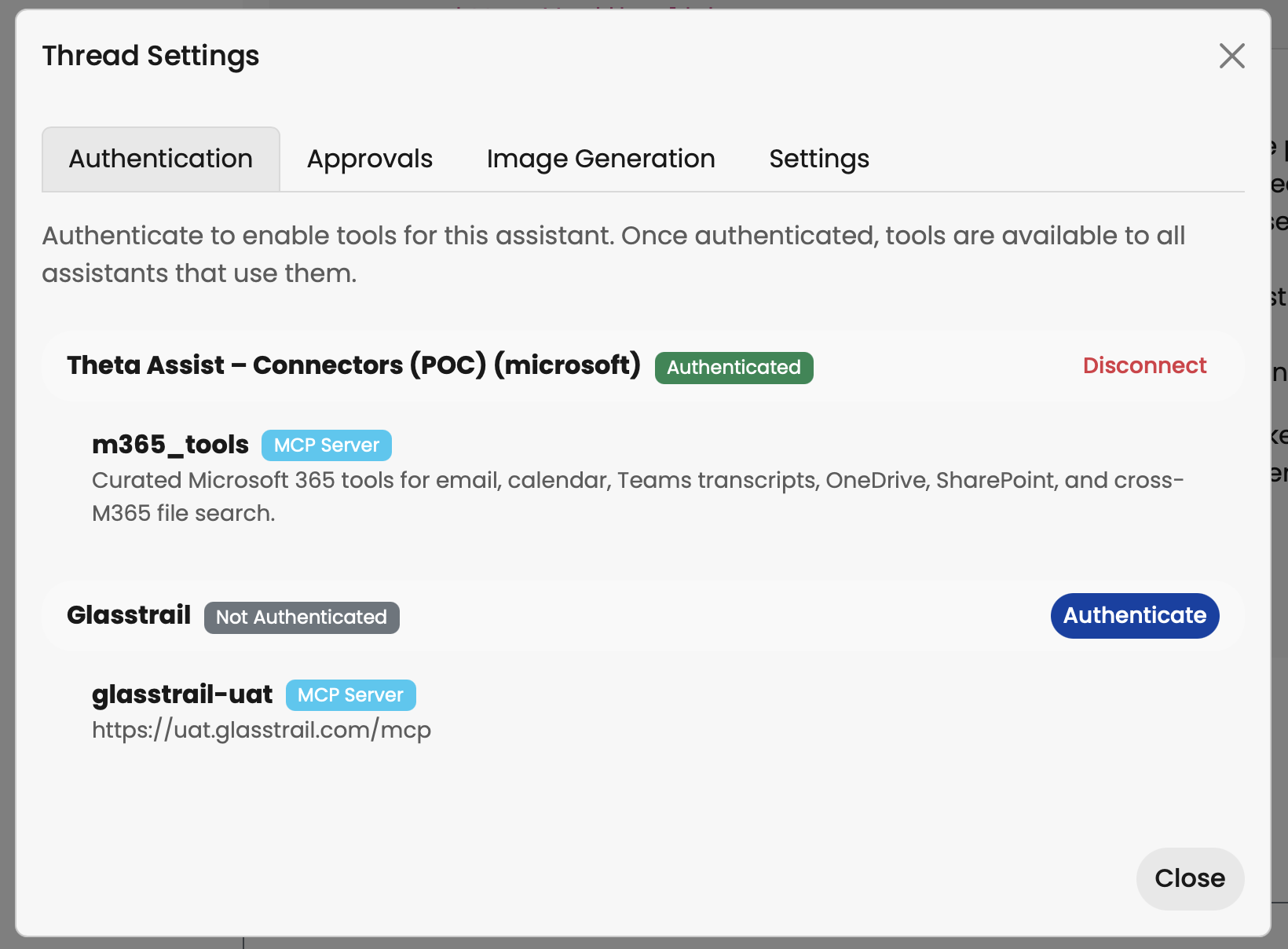
- Select the wrench icon beside the message box.
- Open Authentication.
- Click Authenticate.
- A pop up will open where you can sign in to your Glasstrail account to connect.
Work with Glasstrail data
Start by asking your AI tool a question. Include the organisation, domain or finding you want it to use.
For example:
- “Summarise my current findings for [organisation].”
- “Show high-risk CVE findings for [organisation].”
- “Show DMARC findings across my domains.”
- “Find new breached accounts for [organisation].”
- “List certificates that are due to expire.”
- “When did the last scan complete?”
The connection can retrieve findings, comments, activity, scan information and entity details. It can also compare scan results.
Update findings
If your connection has write access and your Glasstrail permissions allow it, you can ask your AI tool to:
- Update a finding’s status.
- Add, edit or delete a comment.
- Assign a finding or change its target date.
- Add or remove tags.
- Manage ticket links.
- Create or update a manual finding.
For example: “Add a comment to finding [ID]: ‘Review scheduled for 5 November 2026.’”
The same rules apply as in Glasstrail. For example, changing a finding to Tolerated or Not relevant requires a comment. Read-only members can only edit findings assigned to them.
Changes made through a connected tool are attributed to that tool in Glasstrail’s activity trail.
Check the information behind an answer
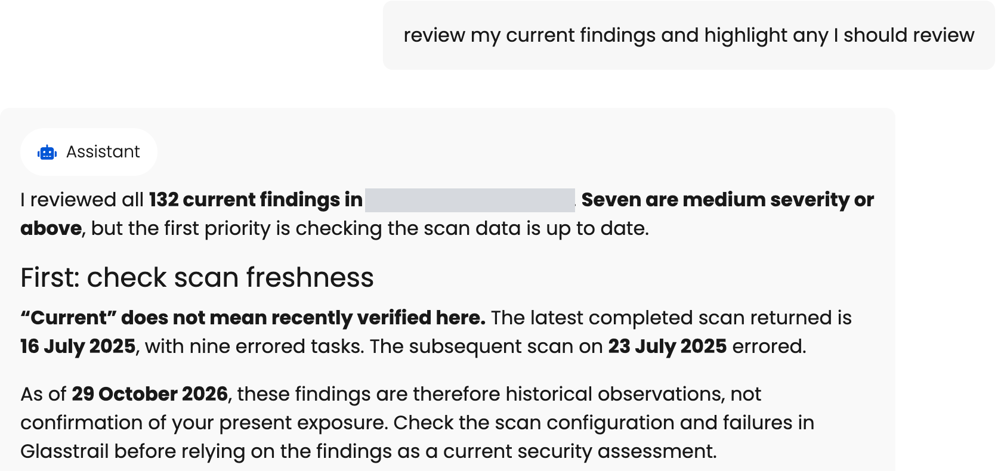
Check which organisation and scan dates the AI tool used. A finding marked as current does not necessarily come from a recent scan.
Review important findings and changes in Glasstrail. Starting scans remains a task you complete in Glasstrail, not through the MCP connection.
Review and disconnect connected apps
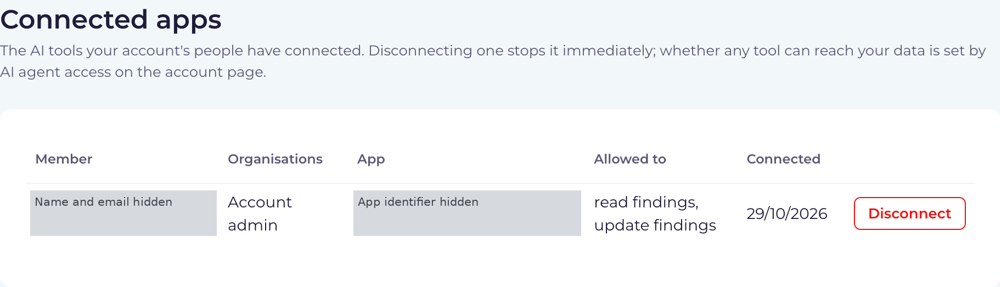
Open Account > Connected apps in Glasstrail to review AI tools connected by members.
The page shows the member, organisation information, app, allowed actions and connection date.
What you can see depends on your role:
- Members can view and disconnect their own tools.
- Organisation admins can view their members’ connections.
- Account admins can view connections across the account.
To remove a connection:
- Open Connected apps.
- Find the relevant member and app.
- Select Disconnect.
Disconnecting stops that connection’s access immediately.
Block AI access
For account admins
To block every AI tool from accessing the account:
- Open the account details page.
- Find AI agent access.
- Clear Allow AI agents (MCP clients, such as Claude) to access this account’s data.
The change applies immediately, including to existing connections. It blocks access but does not disconnect the apps.
To exclude one organisation instead, clear that organisation’s checkbox. To remove an individual connection, use Connected apps.
Troubleshoot your connection
Your AI tool cannot access an organisation
Ask an account admin to check that AI agent access is enabled for both the account and the organisation. Also check that your Glasstrail user has access to that organisation.
Your AI tool can read findings but cannot update them
Check that you approved write access when connecting. Your Glasstrail role and finding permissions must also allow the requested change.
Your tool is authenticated but requests fail
Authentication alone does not guarantee access. An account admin may have blocked AI access or excluded the organisation.
Check the account settings and whether the connection still appears under Connected apps in Glasstrail.